
Videos
In this video, you can learn how to enable two-factor authentication.
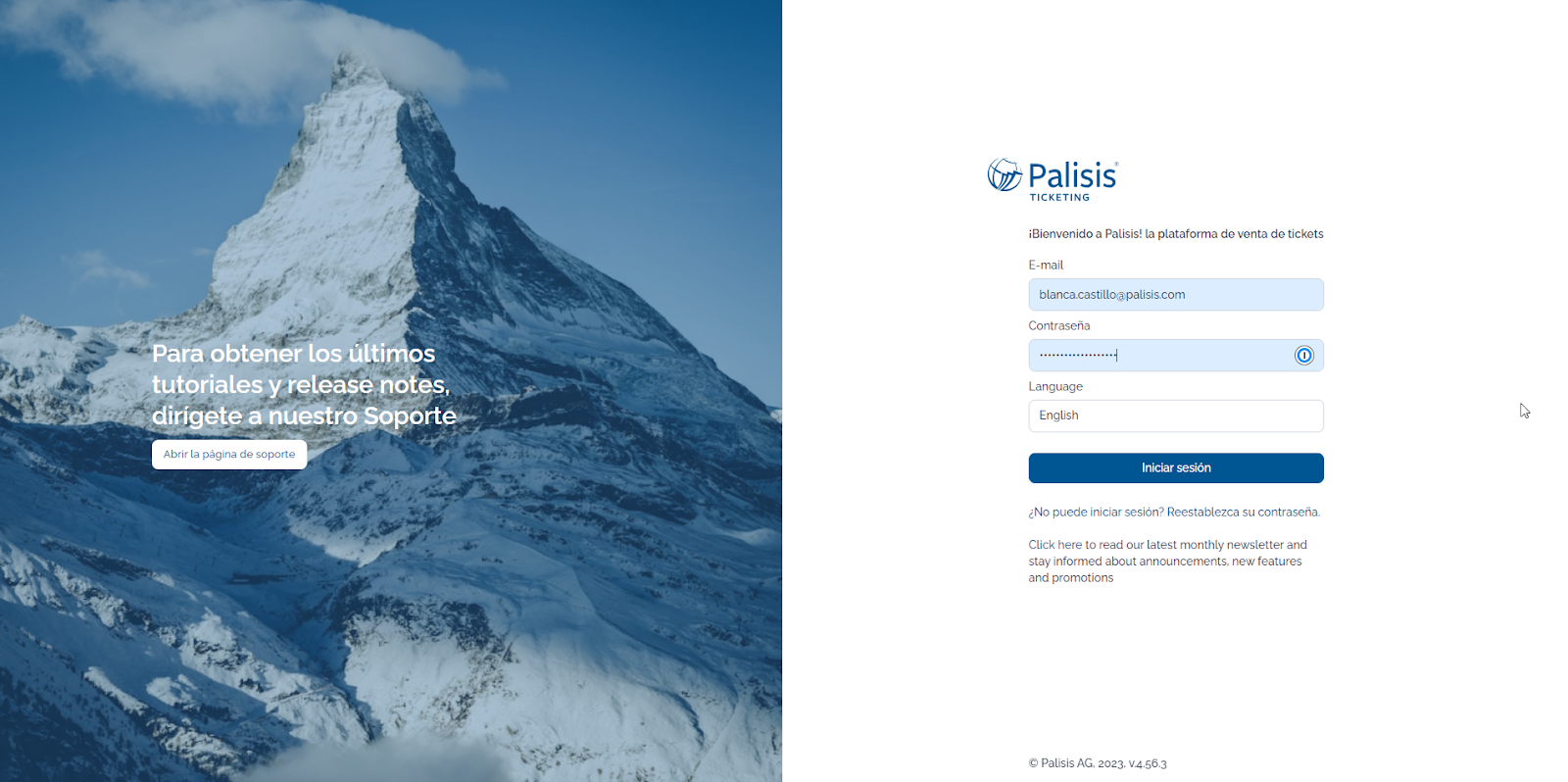
Below, we demonstrate how you can log in using two-factor authentication.
Where do I find it?
User > Password / 2FA
What does it mean?
Two-factor authentication strengthens access security by requiring two methods of authentication to log in to the Palisis backoffice. It’s an extra level of protection to your user account to make sure that the users who are trying to access the backoffice are actually what they say they are by entering a one-time passcode as a second step after entering the user and password.
What should I do?
Please, go to User > Password / 2FA. Then, follow the steps to register your mobile phone or device.
Step 1: Enter your device name, f.e. My phone
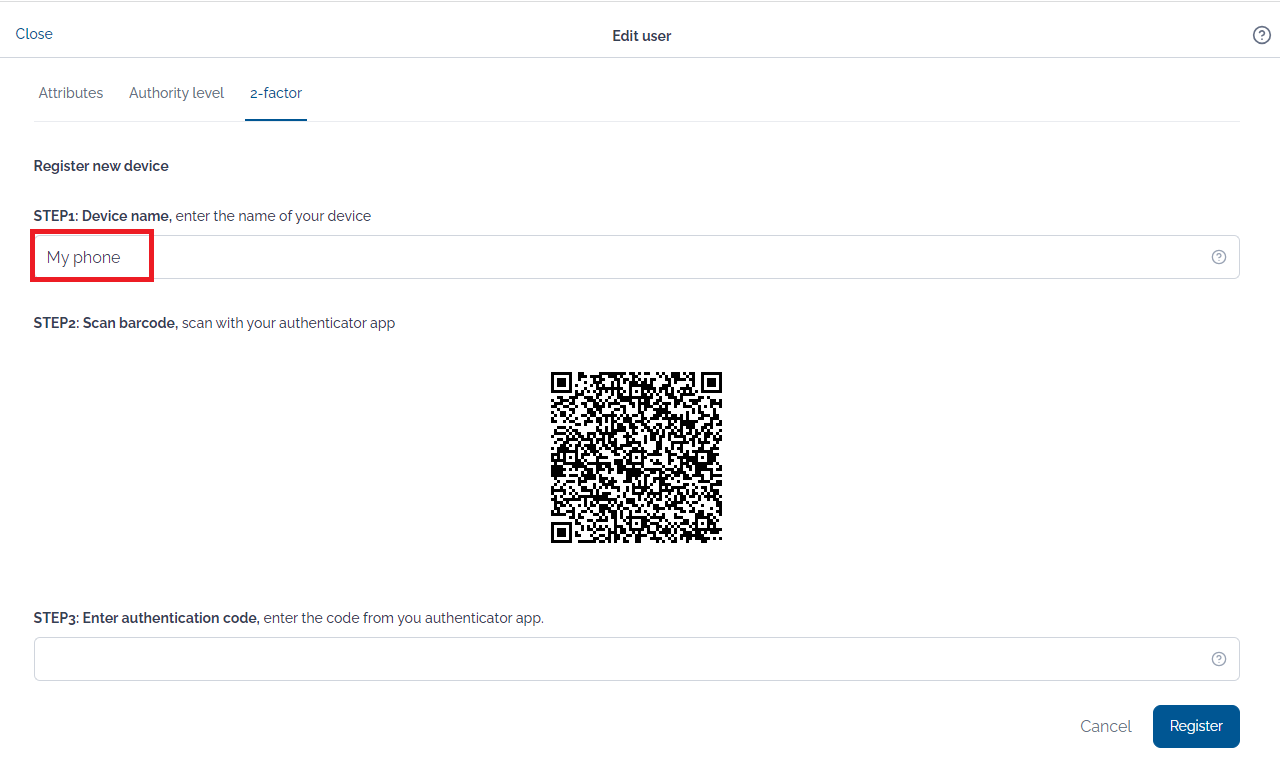
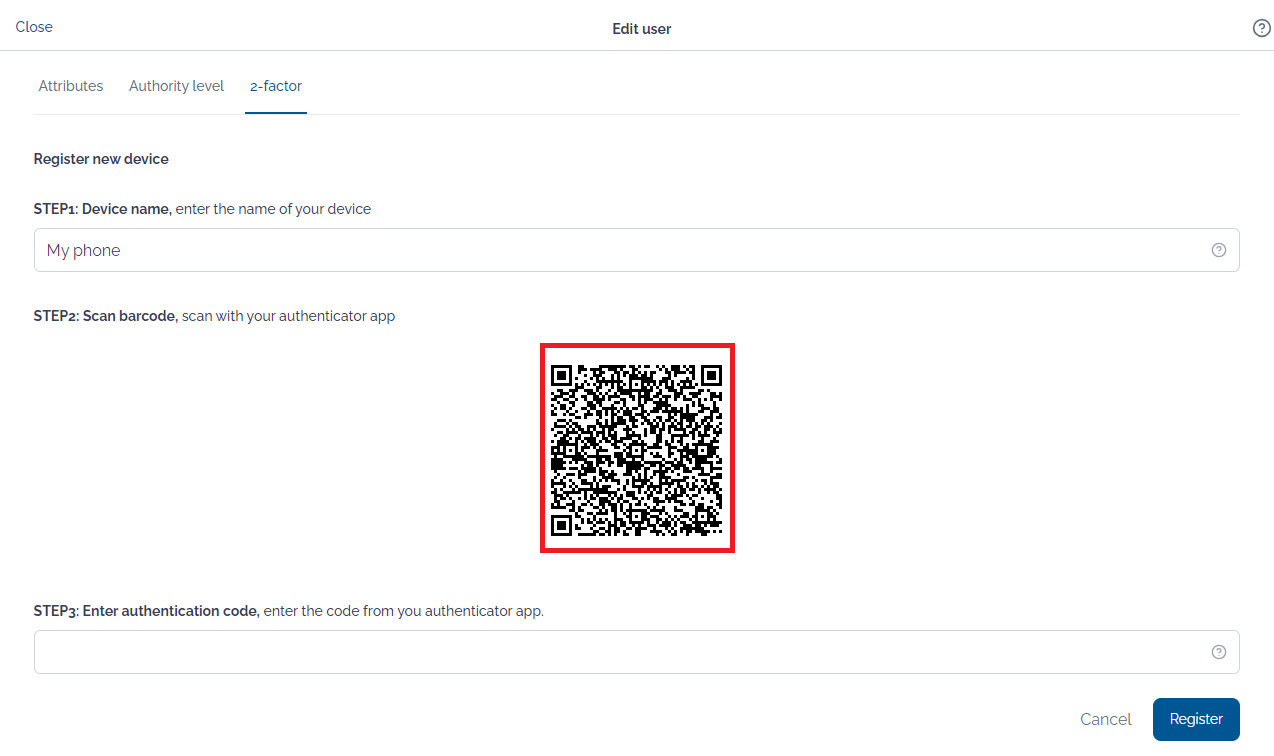
Step 2: Scan the QR code from your authentication app on your device.
For that, you need an authentication app. If you still don’t have one, then you need to download it from the “Google Play store” or the “Apple store” and install it on your mobile phone. We recommend Google Authenticator or 1Password.
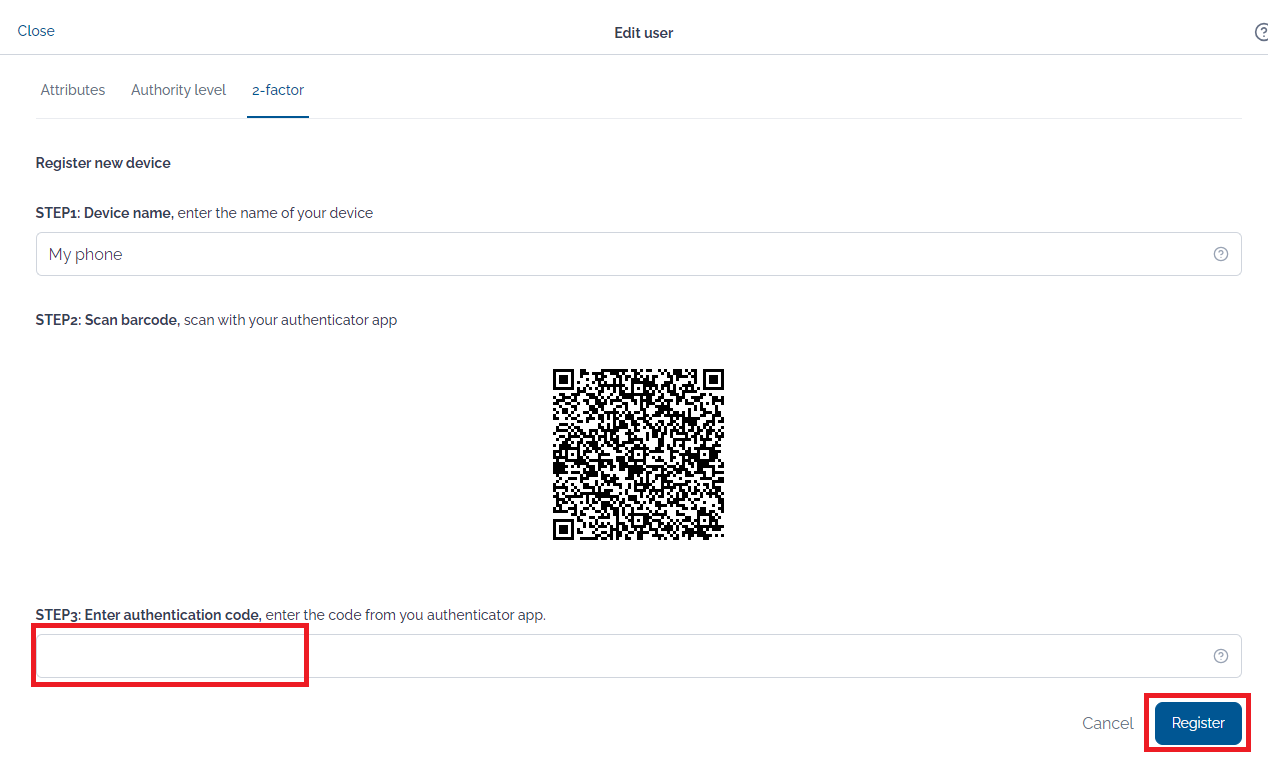
Step 3: After scanning the QR code your authenticator app will give you a code to enter into Palisis Enter the code and click the “Register button to complete setup.
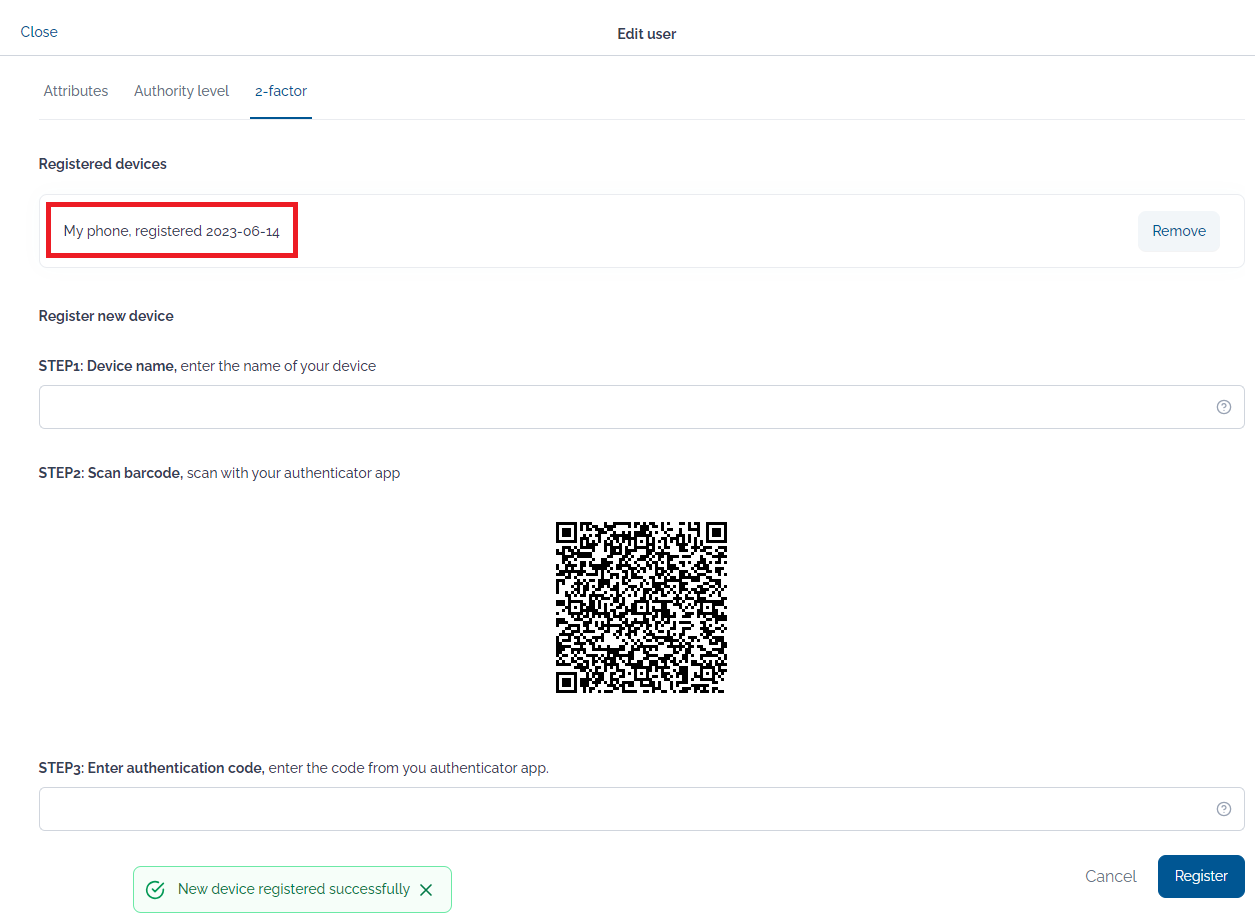
Now you have registered your device and you will receive the code on the authentication every time your user tries to log in.

Notifications
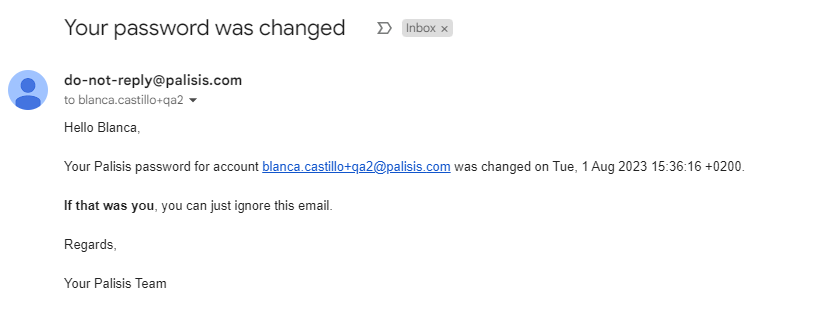
The system will send you an email to notify you about new devices added, or removed devices or when your password changes.
Here are some examples:
- New device added

- Removed device

- Password change
Disabling Two-Factor Authentication (2FA)
To ensure account security and comply with data protection policies, Palisis cannot disable two-factor authentication (2FA) based on a third-party request. Disabling 2FA bypasses an essential security layer and must be handled with the highest level of security.
A backoffice admin user can remove 2FA for a specific user by going to Account > Users, selecting the user, scrolling down to the 2-step verification section, and removing the device. This disables 2FA so the user can link a new device or Authenticator app.